

 SkillClick
QuickBooks Enterprise Remote Access: Setup, Requirements & Complete Guide
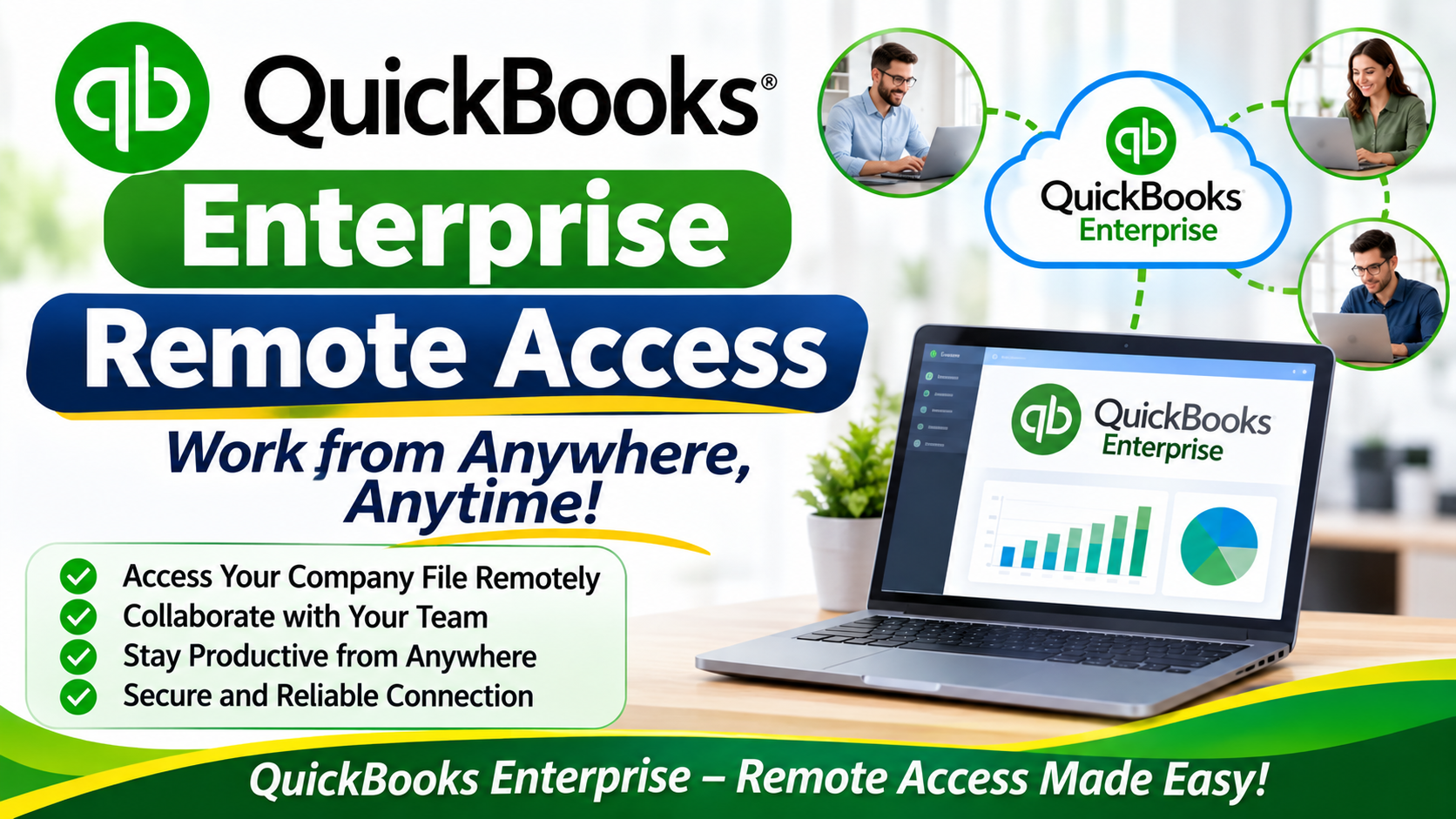
Managing business finances no longer requires employees to sit in the same office or use the same computer. With remote access, businesses can work with their accounting data from different locations while maintaining a centralized accounting environment.
QuickBooks Enterprise Remote Access allows authorized users to work with QuickBooks Desktop Enterprise when they are away from their primary office. Depending on the business requirements, remote access can be configured through cloud hosting, Microsoft Remote Desktop Services (RDS), or a properly configured network environment.
For example, a business owner may need to review financial reports from home, an accountant may need to access company records while working remotely, and an inventory manager may need to coordinate transactions with the accounting department.
This guide explains how QuickBooks Enterprise remote access works, which access methods are available, how to configure them, what security precautions to follow, and how to troubleshoot common connection problems.
What Is QuickBooks Enterprise Remote Access?
QuickBooks Enterprise Remote Access refers to the ability to access and operate QuickBooks Desktop Enterprise from a computer or supported device located somewhere other than the primary office.
Instead of depending entirely on a single office workstation, businesses can configure a remote environment that allows authorized employees to access their accounting software and company files.
QuickBooks Enterprise supports remote access through several configurations, including:
-
Cloud-based QuickBooks hosting.
-
Microsoft Remote Desktop Services.
-
Remote access to a properly configured business server.
-
Multi-user access within a supported local network environment.
The right approach depends on the number of employees, existing IT infrastructure, licensing requirements, security policies, and business operations.
It is important to understand that remote access does not automatically mean that QuickBooks Enterprise has become QuickBooks Online. Enterprise remains a desktop accounting application, even when hosted on a remote server.
How Does QuickBooks Enterprise Remote Access Work?
Remote access works by allowing an authorized user to connect to the computer or server where QuickBooks Enterprise is installed.
Depending on the selected configuration, the connection works differently.
For example, with cloud hosting, the hosting provider maintains the remote server where QuickBooks and the company data are stored. Employees connect to the hosted environment over the internet.
With an on-premises Remote Desktop Services configuration, the business maintains its own Windows Server environment. Authorized employees connect to that server using remote desktop technology.
In both cases, users can work within a centralized QuickBooks environment instead of exchanging separate company file copies.
A typical remote access arrangement involves:
-
Installing QuickBooks Enterprise in the selected environment.
-
Storing the company file in the appropriate location.
-
Configuring the server and remote connection.
-
Creating individual user accounts.
-
Assigning the required QuickBooks permissions and licenses.
-
Testing remote access before allowing employees to use the system.
Different Ways to Access QuickBooks Enterprise Remotely
There is no single remote access configuration suitable for every business. QuickBooks Enterprise users can consider the following options.
1. QuickBooks Enterprise Cloud Hosting
Cloud hosting is one of the practical options for businesses that want employees to access QuickBooks from different locations without maintaining their own office server.
In this arrangement, QuickBooks Enterprise and the associated company files are hosted on a remote server maintained by a hosting provider.
Users connect to the hosted environment using the provider's supported remote access application or connection method.
Intuit offers QuickBooks Desktop Enterprise with cloud hosting, powered by Rightworks.
Benefits of cloud hosting include:
-
Access QuickBooks from different locations.
-
Support collaboration between remote employees.
-
Centralize company file storage.
-
Reduce dependence on an office computer.
-
Use hosting-provider-managed infrastructure.
-
Take advantage of available backup and security services.
However, businesses should carefully evaluate hosting costs, storage limits, user licensing, backup policies, and technical support before selecting a provider.
Cloud hosting is particularly useful for businesses with remote employees, multiple offices, and accounting professionals who need access to centralized financial records.
2. Microsoft Remote Desktop Services (RDS)
QuickBooks Enterprise is compatible with Microsoft Remote Desktop Services.
RDS allows businesses to install QuickBooks Enterprise on a centrally managed Windows Server and provide remote desktop sessions to authorized users.
Instead of installing and maintaining a separate QuickBooks environment on every remote employee's computer, users connect to the centralized server.
How RDS works:
-
QuickBooks Enterprise is installed on the designated server.
-
The administrator configures Windows Server and Remote Desktop Services.
-
Authorized users receive individual Windows accounts.
-
Required Microsoft licensing is configured.
-
Users connect to the server using a supported Remote Desktop client.
-
Employees launch QuickBooks within their remote sessions.
This arrangement can be useful for businesses with an established IT department that wants greater control over its infrastructure.
Important licensing consideration: QuickBooks user licenses and Microsoft Remote Desktop Services licensing are separate requirements. Each unique QuickBooks user needs the appropriate license, and RDS deployments may require additional Windows Server and Remote Desktop Services Client Access Licenses (RDS CALs).
3. QuickBooks Enterprise Multi-User Network Access
A multi-user network allows multiple authorized employees to work with the same QuickBooks company file through a supported business network.
In this arrangement, the company file is stored on a designated host computer or server, and other workstations access it through the network.
QuickBooks Database Server Manager helps manage company file access in a multi-user environment.
This setup is generally suitable for businesses whose employees work within the same office network.
A traditional local multi-user network should not be confused with a fully configured remote desktop or cloud hosting solution. Simply sharing a company file over the internet does not create a supported remote access environment.
QuickBooks Enterprise Remote Access Requirements
Before configuring remote access, businesses should verify that their computers, servers, software, and network infrastructure meet the requirements of their selected setup.
The exact requirements vary by QuickBooks release and hosting configuration.
Consider the following areas before proceeding.
1. Supported Operating System
Check the official system requirements for your particular QuickBooks Enterprise release.
The server operating system must also be compatible with the installed QuickBooks version and the selected remote access configuration.
Do not assume that every Windows version or server configuration supports every Enterprise release.
2. Sufficient RAM and Processing Power
Remote accounting environments require sufficient processing resources to support QuickBooks, Windows, company files, and simultaneous user sessions.
Businesses with multiple users should evaluate their total server workload rather than selecting hardware based only on the minimum requirements for a single workstation.
3. Stable Internet Connection
Cloud hosting and remote desktop access depend on reliable connectivity.
An unstable connection can cause slow screen updates, interrupted sessions, and difficulties accessing company files.
For better performance:
-
Use a reliable broadband connection.
-
Prefer wired Ethernet for fixed office computers.
-
Avoid unnecessary background downloads.
-
Monitor network latency and packet loss.
-
Maintain a backup internet connection when accounting operations are critical.
4. QuickBooks Enterprise User Licenses
The number of employees who can work simultaneously depends on the Enterprise subscription and the licenses purchased.
Intuit's current product information describes support for up to 40 users with Enterprise Diamond. Other Enterprise plans have different user limits.
Each unique user requires an appropriate license.
5. Network and Firewall Configuration
For on-premises configurations, network administrators should verify that the required QuickBooks services and network communication are working correctly.
Firewall rules must permit the necessary connections without unnecessarily exposing the server to the public internet.
Never disable firewall protection simply to make a remote connection work.
How to Set Up QuickBooks Enterprise Remote Access
The setup procedure depends on whether you are using cloud hosting or an on-premises server.
The following sections explain the general configuration process.
Method 1: Set Up QuickBooks Enterprise Using Cloud Hosting
QuickBooks Cloud hosting is generally easier for businesses that do not want to maintain their own server infrastructure.
Follow these steps:
Step 1: Select a Hosting Provider
Start by researching hosting providers that support your QuickBooks Enterprise edition.
Intuit maintains a list of authorized third-party hosting providers. Verify the provider's current authorization status before selecting a service.
Step 2: Select Your Hosting Plan
Evaluate the number of users, storage requirements, backup frequency, support availability, and security features.
Make sure your plan supports the QuickBooks Enterprise version you currently use.
Step 3: Prepare Your QuickBooks Company File
Create a current backup of your existing company file before migration.
Check that the file opens correctly on your existing computer and that no unresolved company file problems could interfere with the migration.
Step 4: Transfer Your Company File
Work with the hosting provider to move your QuickBooks company file into the hosted environment.
The provider should explain how the file will be transferred, verified, and protected during migration.
Step 5: Configure User Access
Create individual user accounts for employees who need access.
Assign the appropriate QuickBooks roles and permissions rather than providing everyone with administrative access.
Step 6: Connect to Hosted QuickBooks
Use the connection instructions supplied by your hosting provider.
Depending on the service, you may need to use a remote desktop client, browser-based portal, or another supported application.
Step 7: Test Your Environment
Open QuickBooks Enterprise and verify that the company file loads correctly.
Check essential operations such as opening reports, viewing transactions, accessing customer records, and saving permitted changes.
Test the connection with each authorized user before relying on the hosted environment for daily accounting.
Method 2: Configure QuickBooks Enterprise Using Remote Desktop Services
Businesses with an existing IT infrastructure may prefer an internally managed RDS environment.
Follow these general steps:
Step 1: Prepare the Windows Server
Select a compatible Windows Server version and configure the hardware according to the expected number of simultaneous users.
Install the necessary Windows Server components and security updates.
Step 2: Configure Remote Desktop Services
An authorized administrator should configure the Remote Desktop Session Host and the other RDS components required by the deployment.
Configure the appropriate Microsoft licensing, including RDS CALs where applicable.
Step 3: Install QuickBooks Enterprise
Install the supported QuickBooks Enterprise release on the designated server.
Verify the product license and confirm that the installation works before enabling remote employee access.
Step 4: Configure Company File Storage
Place the company file in the designated location and configure the appropriate folder permissions.
The server and QuickBooks environment must be able to access the company file without permission conflicts.
Step 5: Create Individual User Accounts
Create a separate Windows account for each employee who requires remote access.
Configure the appropriate QuickBooks user permissions and Microsoft access policies.
Step 6: Configure Secure Remote Connectivity
Use a properly secured remote access architecture.
Consider multifactor authentication, network-level access restrictions, strong passwords, and administrator-controlled access.
Do not expose Remote Desktop directly to the public internet without an appropriately designed security architecture.
Step 7: Test Multiple User Sessions
Ask authorized users to connect separately and test their normal accounting workflows.
Confirm that the environment supports the expected number of simultaneous sessions and that users can access the correct company file.
Method 3: Configure QuickBooks Enterprise Multi-User Access
If employees work within the same supported office network, a traditional multi-user configuration may be appropriate.
Follow these steps:
-
Install QuickBooks Enterprise on the server and required workstations.
-
Store the company file in the designated shared folder on the server.
-
Install QuickBooks Database Server Manager where required.
-
Scan the folder containing the company file using Database Server Manager.
-
Confirm that the server can host multi-user access.
-
Open QuickBooks on the server and select File > Utilities.
-
Select Host Multi-User Access if hosting is not already enabled.
-
On workstations, verify that multi-user hosting is turned off.
-
Open the company file through the configured network location.
-
Test access using the authorized QuickBooks user accounts.
Important: In a standard multi-user network configuration, the designated server should be the host. Avoid enabling hosting on multiple workstations, as incorrect hosting settings can create connection problems.
How to Access QuickBooks Enterprise From Home
Business owners and employees often want to access QuickBooks Enterprise from home without physically visiting their office.
The process depends on the remote access environment configured by the business.
For cloud-hosted QuickBooks:
-
Open the hosting provider's login portal or supported remote access application.
-
Enter your authorized login credentials.
-
Complete multifactor authentication if required.
-
Connect to the hosted desktop.
-
Launch QuickBooks Enterprise.
-
Open the appropriate company file.
-
Complete your accounting tasks and save your changes.
For an internally managed Remote Desktop Services environment:
-
Confirm that your organization has configured secure remote access.
-
Open the supported Remote Desktop client.
-
Enter the server address or connection details supplied by your IT administrator.
-
Sign in using your assigned Windows account.
-
Complete the required authentication checks.
-
Open the QuickBooks Enterprise application.
-
Access the company file through the configured server environment.
If you cannot connect, contact your IT administrator before changing firewall settings or modifying the company file location.
Is QuickBooks Enterprise Remote Access Secure?
Yes, QuickBooks Enterprise can be used remotely in a secure environment, provided the hosting infrastructure, network configuration, user accounts, and access policies are properly managed.
However, remote access security does not depend on QuickBooks alone. The hosting provider or business IT administrator also plays an important role.
Here are some important security practices.
Use Individual User Accounts
Every employee should have an individual login account.
Avoid sharing Windows or QuickBooks credentials between employees because doing so makes it difficult to track user activity and identify unauthorized access.
Enable Multifactor Authentication
Use multifactor authentication wherever supported by the hosting service and remote access infrastructure.
MFA adds an additional verification step beyond a password.
Configure Role-Based Permissions
QuickBooks Enterprise offers user roles and permissions that help businesses control which accounting information employees can access.
For example:
-
Accountants may need access to financial reports.
-
Sales employees may need customer and sales information.
-
Inventory managers may need access to inventory functions.
-
Payroll administrators may require access to payroll-related information.
Give employees only the access needed to perform their responsibilities.
Maintain Regular Backups
Create regular company file backups and verify that they can be restored.
If you use a hosting provider, review its backup frequency, retention period, restoration process, and responsibility for backup management.
Never assume that a backup exists simply because a hosting provider advertises automatic backups.
Keep Software Updated
Install applicable QuickBooks updates, Windows security updates, and remote access client updates.
Before major changes, create a verified backup and confirm that the update is compatible with your environment.
Monitor Remote Access Activity
Review login records and access permissions regularly.
Disable accounts that are no longer needed and investigate unusual login attempts.
How Many Users Can Access QuickBooks Enterprise Remotely?
QuickBooks Enterprise supports multi-user accounting, but the number of users depends on the subscription and licensing configuration.
Intuit currently advertises the following broad user capacity:
|
Enterprise plan |
Maximum user capacity |
|
Silver |
Up to 3 users |
|
Gold |
Up to 30 users |
|
Platinum |
Up to 30 users |
|
Diamond |
Up to 40 users |
Always verify the exact user allowance and available options against your current subscription agreement.
Remember that QuickBooks user licenses and Microsoft Remote Desktop Services licenses are separate. A business may need additional Microsoft licensing when using an RDS environment.
QuickBooks Enterprise Remote Access vs. Cloud Hosting
Remote access and cloud hosting are closely related, but they are not identical.
Remote access describes the ability to connect to QuickBooks from another location. Cloud hosting describes where the software and company data are stored and how the hosted environment is maintained.
|
Feature |
Traditional Remote Desktop |
Cloud Hosting |
|
Server location |
Business-managed server |
Hosting provider's server |
|
Infrastructure |
Managed by the business |
Managed by provider |
|
Remote connection |
RDS or configured remote access |
Provider-supported connection |
|
Maintenance |
Business IT team |
Hosting provider |
|
Backup management |
Business responsibility |
Depends on provider agreement |
|
Scalability |
Depends on server capacity |
Depends on hosting plan |
|
Best suited for |
Businesses with IT resources |
Businesses wanting managed hosting |
Neither approach is automatically better for every business.
A company with an established IT department may prefer an internally managed RDS environment. A business that wants less server maintenance may find cloud hosting more convenient.
QuickBooks Enterprise Remote Access vs. QuickBooks Online
Some businesses confuse remote access with switching to QuickBooks Online.
These are two different approaches.
QuickBooks Enterprise is desktop accounting software that can be accessed remotely through a properly configured hosting or server environment.
QuickBooks Online is a cloud-based accounting application that users access through a web browser or supported mobile application.
Consider these differences:
|
Comparison |
QuickBooks Enterprise |
QuickBooks Online |
|
Software type |
Desktop application |
Cloud-based application |
|
Remote access |
Requires a remote access configuration |
Access through supported online login |
|
Data environment |
Local server or hosted environment |
Intuit's cloud platform |
|
User management |
Enterprise roles and permissions |
Online user roles and permissions |
|
Infrastructure |
Business or hosting-provider managed |
Intuit-managed platform |
|
Product features |
Enterprise-specific desktop workflows |
Online-specific accounting features |
Businesses that depend on existing Enterprise workflows may prefer remote hosting rather than immediately changing accounting platforms.
However, businesses should compare features, pricing, integrations, and migration requirements before making a long-term decision.
Common QuickBooks Enterprise Remote Access Problems and Their Solutions
Remote access problems can interrupt accounting operations, prevent employees from opening company files, and delay financial reporting.
Most issues are related to network connectivity, hosting configuration, permissions, or server availability.
1. QuickBooks Enterprise Cannot Connect to the Server
Possible causes:
-
Server is offline.
-
Internet or network connectivity is unstable.
-
Remote access service is unavailable.
-
Firewall rules are blocking required communication.
-
Incorrect server connection details.
Solutions:
-
Verify that the server is running.
-
Check the network connection.
-
Confirm that the remote access service is available.
-
Review firewall rules with the IT administrator.
-
Verify the server address and connection configuration.
2. QuickBooks Error H202
QuickBooks Error H202 commonly appears when a workstation cannot communicate with the computer hosting the company file in multi-user mode.
Possible causes:
-
Incorrect hosting configuration.
-
Firewall restrictions.
-
QuickBooks Database Server Manager problems.
-
Required background services are stopped.
-
Network configuration issues.
Solutions:
-
Verify the server hosting settings.
-
Run QuickBooks Database Server Manager.
-
Check the QuickBooks database services.
-
Review firewall configuration.
-
Test network connectivity between the workstation and server.
3. QuickBooks Hosting Mode Is Off
QuickBooks may display hosting-related problems when the server and workstations are not configured correctly.
Solutions:
-
Open QuickBooks on the designated server.
-
Navigate to File > Utilities.
-
Check the hosting configuration.
-
Enable hosting on the designated server when appropriate.
-
Turn off hosting on other workstations in a standard network configuration.
For detailed instructions, read How to Troubleshoot QuickBooks Hosting Mode Is Off.
4. QuickBooks Error H101
Error H101 can appear when a workstation cannot establish the required connection with the computer hosting the company file.
Solutions:
-
Verify the hosting configuration.
-
Check the network connection.
-
Confirm that the required QuickBooks services are running.
-
Review Windows firewall settings.
-
Check the company file network configuration.
Read our related guide: How to Fix QuickBooks Error H101.
5. QuickBooks Database Server Manager Is Not Working
Database Server Manager is an important component of a traditional QuickBooks multi-user environment.
If it stops working or cannot identify company files, workstations may experience connection problems.
Solutions:
-
Check whether Database Server Manager is installed.
-
Verify the relevant QuickBooks services.
-
Scan the company file folder.
-
Check folder permissions.
-
Restart the affected services when appropriate.
6. Remote Desktop Connection Keeps Disconnecting
A remote desktop connection may disconnect because of an unstable internet connection, server resource limitations, session policies, or network restrictions.
Solutions:
-
Test internet stability.
-
Check the server's CPU and memory usage.
-
Review remote session timeout settings.
-
Update the remote desktop client.
-
Contact the system administrator to investigate recurring disconnections.
How to Choose the Right QuickBooks Enterprise Hosting Provider
Selecting a reliable hosting provider is an important part of establishing remote access.
Do not choose a provider based solely on its advertised monthly price.
Evaluate the following factors before making a decision.
1. Intuit Authorization
Check whether the provider appears on Intuit's current authorized hosting provider list.
Intuit lists authorized providers for supported QuickBooks Desktop products, including Enterprise. Authorization should not be interpreted as an endorsement or guarantee of a provider's services.
2. Security Features
Ask about encryption, multifactor authentication, firewall protection, access controls, and security monitoring.
3. Backup and Recovery
Find out how frequently backups are created, how long they are retained, and how quickly the provider can restore a company file.
4. Performance
Evaluate server specifications, storage, available resources, and the provider's ability to support your expected number of simultaneous users.
5. Technical Support
Confirm support availability, response times, escalation procedures, and whether support staff understand QuickBooks Enterprise.
6. Pricing Transparency
Review setup fees, per-user charges, storage costs, licensing, support charges, and cancellation conditions.
Examples of Intuit-Authorized QuickBooks Hosting Providers
Intuit's hosting program documentation lists providers such as:
-
AbacusNext
-
Ace Cloud Hosting
-
Apps4Rent
-
CloudVara
Check Intuit's current list before selecting a provider, as authorization status and supported services may change.
Best Practices for Managing QuickBooks Enterprise Remote Access
Once remote access is configured, businesses should follow a consistent maintenance routine.
Here are some practical recommendations:
-
Keep QuickBooks Enterprise updated.
-
Create individual user accounts.
-
Review permissions regularly.
-
Maintain verified company file backups.
-
Monitor server performance.
-
Use multifactor authentication where available.
-
Avoid sharing remote desktop credentials.
-
Restrict access to authorized employees.
-
Test backup restoration periodically.
-
Document server configuration and recovery procedures.
These practices help maintain a more reliable accounting environment and reduce unnecessary interruptions.
Final Thoughts
QuickBooks Enterprise Remote Access gives businesses greater flexibility by allowing authorized employees to work with accounting information from different locations.
Businesses can choose cloud hosting, Microsoft Remote Desktop Services, or a supported multi-user network configuration based on their infrastructure and operational requirements.
Before implementing remote access, carefully evaluate licensing, system compatibility, server capacity, security, backup policies, and user permissions.
A properly configured environment can make accounting collaboration easier while maintaining centralized access to business records.
If you are planning to implement remote access, start by identifying how many employees need access, where your company file will be stored, and who will manage the infrastructure. These decisions will help you select a suitable configuration for your business.
Frequently Asked Questions (FAQs)
1. Can I access QuickBooks Enterprise remotely?
Yes. QuickBooks Enterprise supports remote access through cloud hosting, Microsoft Remote Desktop Services, and properly configured network environments. The appropriate setup depends on your business infrastructure and licensing.
2. How do I access QuickBooks Enterprise from home?
You can access QuickBooks Enterprise from home through a hosted environment or an authorized remote desktop connection. Sign in using your assigned credentials and open the company file within the configured environment.
3. Does QuickBooks Enterprise support Remote Desktop?
Yes. QuickBooks Desktop Enterprise is compatible with Microsoft Remote Desktop Services. Businesses can centrally install the application on a server and allow authorized users to connect remotely. Additional Microsoft licensing may apply.
4. Can multiple users access QuickBooks Enterprise remotely at the same time?
Yes. Multiple licensed users can access QuickBooks Enterprise simultaneously, subject to the subscription's user limit and the server or hosting configuration.
5. Is QuickBooks Enterprise cloud hosting secure?
Cloud hosting can provide security features such as encryption, firewalls, access controls, and backups. However, actual security depends on the provider's infrastructure, configuration, policies, and implementation.
6. Do I need to install QuickBooks Enterprise on every computer?
Not necessarily. In a traditional multi-user network, QuickBooks may be installed on the required workstations. In a Remote Desktop Services or hosted environment, users can access the centrally installed application through remote sessions, subject to the supported configuration.
7. What is the difference between QuickBooks Enterprise remote access and QuickBooks Online?
QuickBooks Enterprise remote access allows users to connect to a desktop accounting environment from another location. QuickBooks Online is a separate cloud-based accounting product accessed through a browser or supported application.
8. Can I access QuickBooks Enterprise without an office computer being switched on?
Yes, if your business uses a properly configured cloud hosting environment or another remote server that remains available. A traditional setup relying on an office computer may require that computer to remain powered on and accessible.
9. Why is QuickBooks Enterprise remote access not working?
Common reasons include incorrect hosting settings, network interruptions, firewall restrictions, stopped services, incorrect permissions, or server connectivity problems. Check the connection and hosting configuration before changing company file settings.
10. How many users can use QuickBooks Enterprise?
The user limit depends on the subscription. Intuit currently advertises up to 40 users for Enterprise Diamond, while other plans have lower limits. Each unique user requires an appropriate license.
11. Can I use QuickBooks Enterprise on a Mac remotely?
Access may be possible through a supported remote desktop or hosted environment, depending on the provider's supported client devices and configuration. The hosted QuickBooks application still runs in its supported Windows environment.
12. Does QuickBooks Enterprise remote access require an internet connection?
Yes, cloud hosting and internet-based remote desktop connections require a reliable internet connection. A traditional local multi-user network can operate within its supported network environment without relying on an external internet connection for local file communication.
13. Is QuickBooks Enterprise hosting the same as QuickBooks Desktop hosting?
QuickBooks Enterprise hosting is a form of QuickBooks Desktop hosting specifically configured for the Enterprise edition. The provider must support the appropriate Enterprise version and licensing arrangement.
14. How can I prevent QuickBooks remote access problems?
Maintain updated software, reliable network connectivity, correct hosting settings, individual user permissions, verified backups, and properly configured firewall rules. Regular server maintenance also helps reduce interruptions.
About the Author
The BizBooksAdvice Editorial Team creates educational resources covering QuickBooks Desktop, QuickBooks Enterprise, bookkeeping, accounting, and business finance. Our goal is to help business owners and accounting professionals understand software features, resolve common technical problems, and make informed decisions about their accounting workflows.
Disclaimer: BizBooksAdvice is an independent third-party accounting and bookkeeping resource. It is not affiliated with, endorsed by, or sponsored by Intuit Inc. QuickBooks and related product names are trademarks of Intuit Inc. Product features, licensing, pricing, and availability may change. Always verify technical and licensing requirements with official documentation before implementing a remote access environment.
- Managerial Effectiveness!
- Future and Predictions
- Motivatinal / Inspiring
- Fitness and Wellness
- Medical & Health
- Manufacturing
- Education
- Real-Estate
- Food Industry
- Hospitality
- Online Games
- Sports
- Home Services
- Civil Engineering
- Safety and Protection
- Software Products & Services
- Fashion and Jewellery
- Artificial Intelligence
- Entrepreneurship
- Mentoring & Guidance
- Marketing
- Networking
- HR & Recruiting
- Literature
- Shopping
- Career Management & Advancement