

 SkillClick
QuickBooks Error 15107: 7 Ways to Fix the Update Failed Error
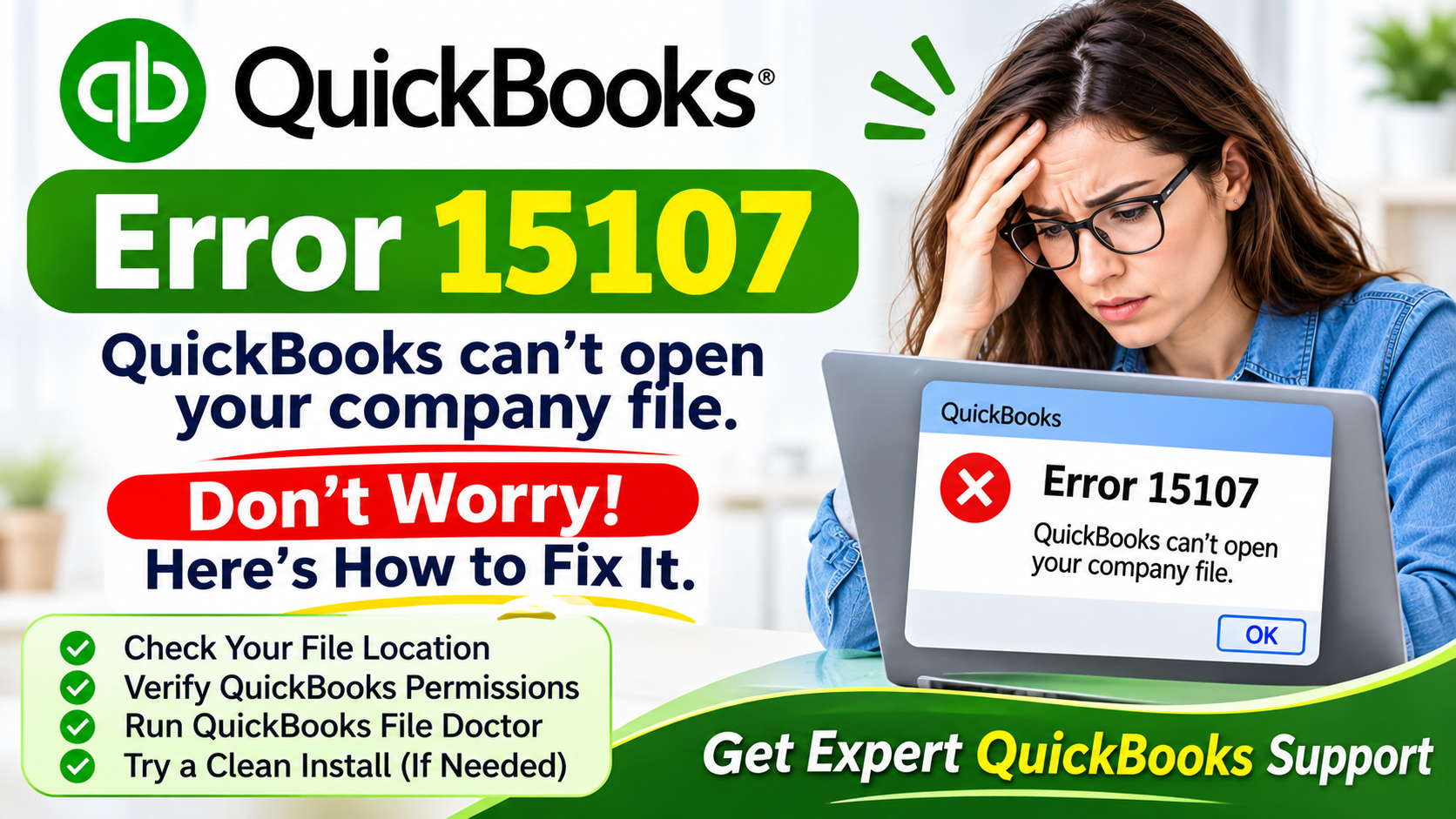
QuickBooks Desktop users rely on regular software and payroll updates to keep their accounting operations running smoothly. However, sometimes the update process stops unexpectedly and displays QuickBooks Error 15107. This error generally appears when downloading or installing QuickBooks Desktop updates or the latest payroll tax table. It can prevent the application from accessing essential update components, verifying downloaded files, or completing the installation process.
If you are experiencing QuickBooks Error 15107, you may notice that the software repeatedly fails to download updates, displays an update-related error message, or cannot install the latest payroll tax table. The issue can be associated with a disabled QuickBooks File Copy Service (FCS), missing payroll update components, damaged Windows files, firewall restrictions, or digital signature verification problems.
The good news is that you can troubleshoot this error using several practical methods. In this guide, we will explain what QuickBooks Error 15107 means, why it occurs, how to identify its symptoms, and seven solutions to help restore the update functionality.
What Is QuickBooks Error 15107?
QuickBooks Error 15107 is a 15XXX-series update error that occurs when QuickBooks Desktop cannot successfully complete a software or payroll update. It may appear while downloading a maintenance release, installing an update, or retrieving the latest payroll tax table.
QuickBooks depends on several Windows components, update files, security permissions, and background services to complete these operations. If one of these components is unavailable or cannot be verified, the update process may fail.
For example, if Windows cannot verify the digital signature of an update file, QuickBooks may be unable to proceed with its installation. Similarly, a firewall restriction or disabled File Copy Service may interrupt the update process.
Quick answer: To fix QuickBooks Error 15107, first run QuickBooks as an administrator, update the application, and run Quick Fix my Program through QuickBooks Tool Hub. If the error continues, investigate the Components folder, digital signature certificate, Windows security settings, and QuickBooks installation.
Common Signs and Symptoms of QuickBooks Error 15107
Identifying the symptoms can help you understand whether the issue is related to QuickBooks updates or another application problem.
Some common signs include:
-
QuickBooks Desktop displays Error 15107 while downloading an update.
-
The latest payroll tax table fails to download or install.
-
QuickBooks repeatedly asks you to install the same update.
-
The update process stops before completion.
-
QuickBooks cannot access certain update components.
-
Windows displays a digital signature verification problem.
-
Payroll-related updates remain unsuccessful.
-
QuickBooks becomes temporarily unresponsive during the update process.
These symptoms may vary depending on your QuickBooks Desktop version and Windows configuration.
Why Does QuickBooks Error 15107 Occur?
Before applying troubleshooting methods, it is important to understand the possible causes. Intuit identifies several common causes behind 15XXX-series errors, including Error 15107.
1. Incorrect Shared Download Drive Mapping
QuickBooks may encounter problems accessing the shared download location if its drive mapping is incorrectly configured. This can prevent the application from locating the required update files.
2. Missing or Damaged Payroll Update Components
QuickBooks requires specific files and components to download and install payroll updates. If these files are missing or unavailable, the update may fail.
3. Disabled QuickBooks File Copy Service
The QuickBooks File Copy Service (FCS) helps manage the copying of update files. If the service is disabled or not functioning correctly, QuickBooks may be unable to complete an update.
4. Firewall or Antivirus Restrictions
Windows Defender Firewall or third-party security applications may block legitimate QuickBooks update activity. These restrictions can interrupt communication with the required update servers.
5. Digital Signature Verification Failure
Windows checks digital signatures to verify the authenticity of software files. If the QuickBooks update executable's certificate cannot be verified, the installation may not continue.
6. Damaged Windows System Files
Missing or corrupted Windows components can interfere with QuickBooks update operations and prevent the application from installing required files.
7. Insufficient Administrative Permissions
QuickBooks may require elevated permissions to access certain folders, services, and update components. Running the application without the necessary permissions can cause update failures.
How to Fix QuickBooks Error 15107? 7 Proven Troubleshooting Methods
Follow these solutions in order. After each method, try downloading the update again before moving to the next one.
Important: Before making changes to Windows services, installation folders, or security settings, close QuickBooks Desktop and create a backup of your company file. Never delete your company file or payroll records while troubleshooting an update error.
Solution 1: Run QuickBooks Desktop as an Administrator
Running QuickBooks with administrative privileges allows the application to access restricted Windows resources and perform update-related operations.
Follow these steps:
-
Close QuickBooks Desktop and all open company files.
-
Locate the QuickBooks Desktop shortcut on your Windows desktop.
-
Right-click the application icon.
-
Select Run as Administrator.
-
If Windows displays a User Account Control prompt, select Yes.
-
Wait for QuickBooks Desktop to open.
-
Navigate to Help and select Update QuickBooks Desktop.
-
Select Update Now and click Get Updates.
-
Once the download finishes, close and reopen QuickBooks.
-
Install the downloaded update if prompted.
Check whether QuickBooks can now complete the update without displaying Error 15107.
Solution 2: Run Quick Fix My Program Using QuickBooks Tool Hub
QuickBooks Tool Hub includes troubleshooting utilities designed to resolve common program-related problems. Its Quick Fix my Program feature closes lingering QuickBooks background processes and performs a quick program repair.
This is one of the recommended troubleshooting methods for 15XXX-series update errors.
Step 1: Download QuickBooks Tool Hub
-
Close QuickBooks Desktop.
-
Visit the official Intuit website and download the latest available QuickBooks Tool Hub.
-
Save the downloaded installation file in an easily accessible location.
-
Open the downloaded QuickBooksToolHub.exe file.
-
Follow the on-screen instructions to complete installation.
-
Open QuickBooks Tool Hub after installation.
Step 2: Run Quick Fix My Program
-
Open QuickBooks Tool Hub.
-
Select the Program Problems tab.
-
Click Quick Fix my Program.
-
Allow the utility to complete its process.
-
Reopen QuickBooks Desktop.
-
Open your company file and try downloading the latest update again.
If the error disappears, the issue may have been associated with a background process or program-related problem.
Solution 3: Reset the QuickBooks Update Components
Sometimes, QuickBooks update components become damaged or incomplete. Resetting the update download can help the application retrieve a fresh copy of the required files.
Intuit also recommends refreshing the Components folder when troubleshooting persistent 15XXX-series errors.
Follow these steps carefully:
-
Close QuickBooks Desktop completely.
-
Open File Explorer.
-
Navigate to the following location:
C:\ProgramData\Intuit\QuickBooks XX\Components -
Replace XX with your QuickBooks Desktop version number.
-
Follow Intuit's instructions for removing the existing Components folder.
-
Reopen QuickBooks Desktop.
-
Navigate to Help > Update QuickBooks Desktop.
-
Select the Update Now tab.
-
Check the Reset Update box.
-
Click Get Updates.
-
Wait until the download finishes.
-
Close and reopen QuickBooks Desktop.
-
Return to Update QuickBooks Desktop and check for the available release.
Important: ProgramData is a hidden Windows folder. If you cannot see it, enable hidden items in File Explorer. Also, do not delete unrelated Intuit folders or your company data. If you are unsure about the folder contents, seek assistance before changing them.
Solution 4: Verify and Install the QuickBooks Digital Signature Certificate
Windows uses digital signatures to verify that software files come from trusted publishers and have not been improperly modified.
If QuickBooks cannot verify its application certificate, the update process may fail.
To check the digital signature:
-
Close QuickBooks Desktop.
-
Open File Explorer.
-
Navigate to the QuickBooks installation directory, commonly:
C:\Program Files\Intuit\QuickBooks -
Locate the QBW32.exe file.
-
Right-click it and select Properties.
-
Open the Digital Signatures tab.
-
Select Intuit from the signature list.
-
Click Details.
-
Select View Certificate.
-
Review the certificate information and verification status.
If the certificate is valid but not installed in the required certificate store, follow Intuit's certificate installation instructions:
-
Select Install Certificate.
-
Follow the Certificate Import Wizard.
-
Choose the appropriate certificate store according to the Windows certificate guidance.
-
Complete the installation.
-
Restart your computer.
-
Open QuickBooks and retry the update.
If Windows reports an invalid, expired, or untrusted certificate, do not bypass the security warning or install a certificate from an unknown source. Verify the application file and obtain assistance through an official support channel.
Solution 5: Check QuickBooks File Copy Service (FCS)
QuickBooks File Copy Service is a Windows service associated with QuickBooks updates. If it is disabled or not running as required, the application may encounter problems copying update components.
You can check its configuration using the Windows Services console.
-
Press Windows + R on your keyboard.
-
Type services.msc in the Run window.
-
Press Enter.
-
Find Intuit QuickBooks FCS in the services list.
-
Double-click the service.
-
Check its current status and startup configuration.
-
If the service is disabled, review the appropriate Intuit instructions for restoring its configuration.
-
Apply the recommended settings.
-
Restart your computer.
-
Open QuickBooks Desktop and try the update again.
Do not randomly change Windows service settings. If the service is missing or its configuration cannot be restored, repair the QuickBooks installation.
Solution 6: Review Windows Firewall and Antivirus Settings
Security software protects your computer, but incorrect settings may sometimes prevent QuickBooks from communicating with its update servers.
If you suspect that a firewall or antivirus application is blocking QuickBooks, review its security logs and permitted application settings.
For Windows Defender Firewall:
-
Open the Windows Start menu.
-
Search for Windows Defender Firewall.
-
Open the firewall settings.
-
Select Allow an app or feature through Windows Defender Firewall.
-
Review whether the required QuickBooks application components are permitted.
-
If necessary, add the verified QuickBooks executable to the allowed applications list.
-
Save the changes.
If you use third-party antivirus software, check its quarantine history and application-blocking settings.
Only create exceptions for verified QuickBooks files and the required Intuit services. Avoid permanently disabling antivirus protection or turning off the firewall.
If you are using a managed business network, contact your IT administrator before changing network security policies.
Solution 7: Repair or Reinstall QuickBooks Desktop
If none of the previous solutions works, your QuickBooks Desktop installation may contain damaged or missing program files.
In that situation, repairing the installation can help restore the components required for updates.
Step 1: Open Windows Control Panel
-
Close QuickBooks Desktop.
-
Press Windows + R.
-
Type Control Panel and press Enter.
-
Select Programs and Features.
-
Find QuickBooks Desktop in the installed applications list.
-
Select QuickBooks Desktop.
-
Choose Uninstall/Change.
-
Select Repair if the option is available.
-
Follow the instructions displayed on your screen.
-
Restart your computer after the repair completes.
Step 2: Reinstall QuickBooks Desktop if Repair Does Not Work
If the repair process does not resolve the issue, consider reinstalling QuickBooks Desktop.
Before reinstalling:
-
Create a backup of your company file.
-
Keep your QuickBooks license and product information available.
-
Confirm that you have access to the correct installer.
-
Make sure you know the correct QuickBooks version and edition.
Use the official Intuit installation instructions to reinstall the application. After installation, download the latest available release and check whether Error 15107 has disappeared.
How to Fix QuickBooks Payroll Update Error 15107?
If QuickBooks Error 15107 appears specifically while downloading a payroll tax table, you should also check your payroll subscription and update configuration.
Payroll updates are important because they provide the tax information and related components used by QuickBooks Desktop Payroll.
Try these additional checks:
Check Your Payroll Subscription
-
Open QuickBooks Desktop.
-
Navigate to Employees.
-
Select My Payroll Service.
-
Open Account/Billing Information, if available.
-
Sign in to your Intuit account when prompted.
-
Review your payroll subscription status.
-
Confirm that the subscription is active and associated with the correct company.
If the subscription has expired or requires billing attention, resolve the account issue before attempting another payroll update.
Download the Entire Payroll Update
-
Open QuickBooks Desktop.
-
Select Employees.
-
Click Get Payroll Updates.
-
Check the Download Entire Update option.
-
Select Update.
-
Wait for the download to finish.
-
Review the confirmation message.
Downloading the complete update can help replace incomplete payroll update components.
Verify the Installed Payroll Tax Table
After completing the update:
-
Open QuickBooks Desktop.
-
Select Employees.
-
Click Get Payroll Updates.
-
Review the tax table version displayed in the window.
-
Compare it with the latest applicable release published by Intuit.
Do not rely on an outdated tax table when processing employee payroll. Always verify the current tax information before preparing paychecks or submitting payroll tax forms.
How to Prevent QuickBooks Error 15107 in the Future
Although update errors cannot always be prevented, following good maintenance practices can reduce the chances of encountering them again.
Here are some useful recommendations:
-
Install updates regularly: Keep QuickBooks Desktop updated to a supported release.
-
Maintain a stable internet connection: Avoid interrupting software and payroll downloads.
-
Check Windows permissions: Ensure the account has the required permissions to run QuickBooks updates.
-
Review security settings: Keep firewall and antivirus rules configured to allow verified QuickBooks components.
-
Monitor QuickBooks services: Ensure required background services are configured correctly.
-
Verify payroll subscription status: Check your subscription before downloading payroll tax tables.
-
Back up company files: Create regular backups before major updates or repairs.
-
Use official installation files: Download QuickBooks updates and troubleshooting utilities from trusted Intuit sources.
These steps can help maintain a stable QuickBooks Desktop environment.
Frequently Asked Questions About QuickBooks Error 15107
1. What is QuickBooks Error 15107?
QuickBooks Error 15107 is a 15XXX-series update error that occurs when QuickBooks Desktop cannot successfully download or install a software or payroll update. It may be associated with missing update components, firewall restrictions, damaged Windows files, disabled FCS, or digital signature verification problems.
2. Why does QuickBooks Error 15107 appear during payroll updates?
The error may appear when QuickBooks cannot access required payroll update components or complete the update process. A disabled File Copy Service, firewall restrictions, damaged Windows files, or digital signature problems may contribute to the issue.
3. Can QuickBooks Tool Hub fix Error 15107?
Yes. Intuit recommends running Quick Fix my Program through QuickBooks Tool Hub when troubleshooting 15XXX-series errors. This utility closes lingering QuickBooks processes and performs a quick program repair. If the issue continues, additional troubleshooting may be necessary.
4. How do I fix QuickBooks Error 15107 on Windows 11?
Start by running QuickBooks Desktop as an administrator. Then, run Quick Fix my Program, reset the update components, and check the digital signature and Windows security settings. If the problem continues, repair QuickBooks Desktop.
5. Does QuickBooks Error 15107 affect company files?
Error 15107 primarily affects software and payroll update operations. It does not automatically mean that your company file is damaged. However, you should always create a backup before performing troubleshooting steps involving program files or installation folders.
6. Can antivirus software cause QuickBooks Error 15107?
Yes. Antivirus software or firewall restrictions may block QuickBooks update components or prevent communication with the required servers. Review the security logs and allow only verified QuickBooks components instead of disabling your protection permanently.
7. What is QuickBooks File Copy Service?
QuickBooks File Copy Service, also called FCS, is a Windows service associated with QuickBooks update operations. If it is disabled or not configured correctly, QuickBooks may encounter difficulties copying or installing update components.
8. Do I need an active payroll subscription to download payroll updates?
An active QuickBooks Desktop Payroll subscription is required for subscription-based payroll tax table updates. If your subscription is inactive, verify its status through your Intuit account before troubleshooting further.
9. What should I do if QuickBooks Error 15107 continues after trying every solution?
If the error persists, review the QuickBooks installation, Windows event logs, security settings, and update configuration. You may need to repair or reinstall QuickBooks Desktop. Before making major changes, back up your company file and consult a qualified technician or official Intuit support.
10. Is QuickBooks Error 15107 the same as Error 15106?
No. Both belong to the 15XXX update-error family, but they are separate error codes. Their troubleshooting steps may overlap, although their specific messages and underlying causes can differ.
Final Words
QuickBooks Error 15107 can interrupt important software and payroll updates, but it does not necessarily mean that your accounting data is damaged. In many cases, the issue can be resolved by running QuickBooks as an administrator, using Quick Fix my Program, resetting update components, checking digital signatures, and reviewing Windows security settings.
If you encounter the error while downloading payroll updates, remember to verify your payroll subscription and confirm that the latest applicable tax table has been installed successfully.
Follow the troubleshooting methods carefully, use official Intuit resources, and maintain a backup of your company file before making significant changes to your QuickBooks installation. These precautions can help you restore the update process while keeping your accounting and payroll records protected.
Disclaimer: BizBooksAdvice is an independent third-party accounting and bookkeeping service provider. It is not affiliated with, endorsed by, or sponsored by Intuit Inc. QuickBooks is a registered trademark of Intuit Inc.
- Managerial Effectiveness!
- Future and Predictions
- Motivatinal / Inspiring
- Fitness and Wellness
- Medical & Health
- Manufacturing
- Εκπαίδευση
- Real-Estate
- Food Industry
- Hospitality
- Online Games
- Sports
- Home Services
- Civil Engineering
- Safety and Protection
- Software Products & Services
- Fashion and Jewellery
- Artificial Intelligence
- Entrepreneurship
- Mentoring & Guidance
- Marketing
- Networking
- HR & Recruiting
- Literature
- Shopping
- Career Management & Advancement