

 SkillClick
Why Is My Phone’s Call Volume Too Low? Causes and Solutions
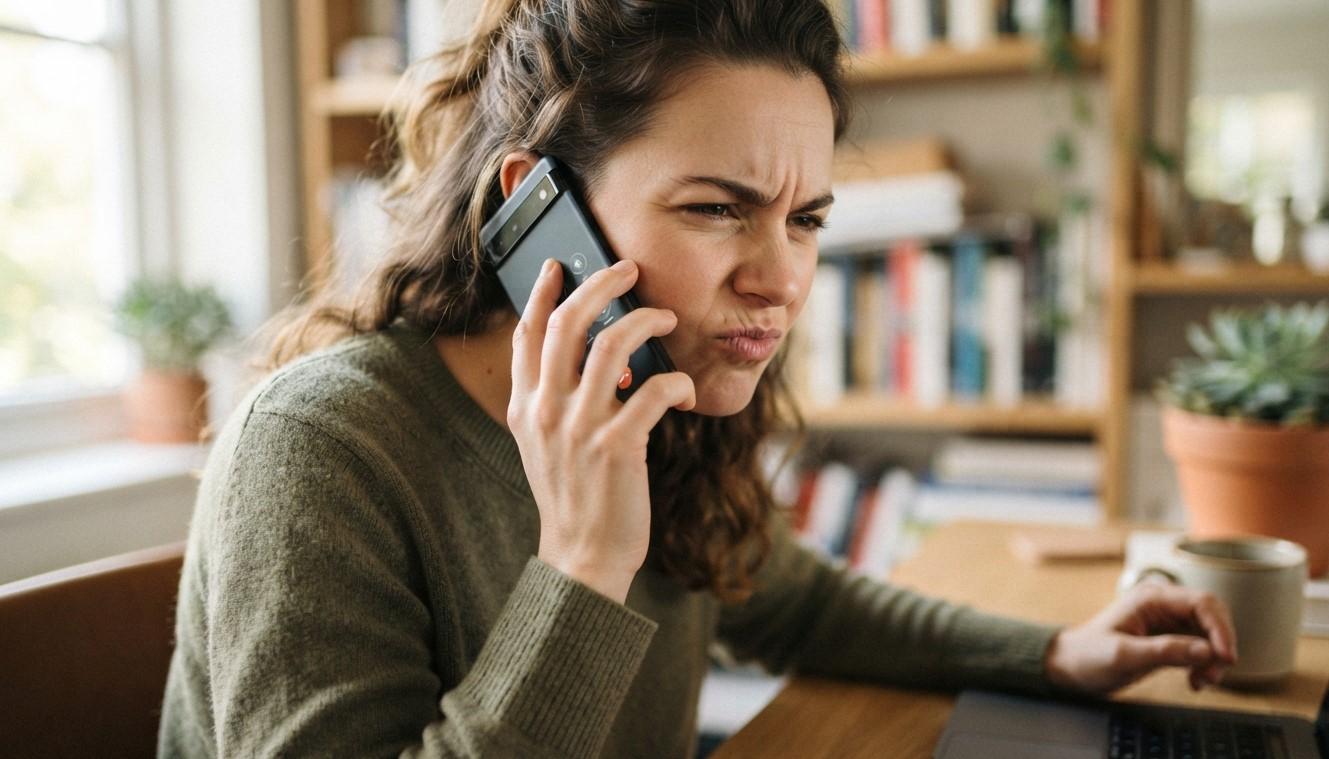
Having trouble hearing someone clearly during a phone call can be frustrating, especially when your phone’s call volume suddenly becomes too low. You may turn the volume all the way up and still struggle to hear the person on the other end. In some cases, the problem is caused by a simple setting, while in others, a blocked earpiece, software issue, or hardware failure may be responsible.
If you are experiencing low call volume, Mobile Device Techs can help identify the cause and determine whether your phone needs cleaning, troubleshooting, or professional repair. Whether you need Cell Phone Repair in Douglasville, GA, Samsung Tablet Repair in Douglasville, GA, Samsung Phone Repair Douglasville, GA, or iPhone repair in Douglasville, GA, understanding the source of the problem can help you take the right next step.
Call-volume problems can occur on almost any smartphone, including iPhones and Samsung devices. Before assuming that your phone requires a replacement, there are several things you can check yourself. This guide explains the most common causes of low call volume and practical solutions to try.
1. Check the Call Volume During an Active Call
One of the easiest things to overlook is when you adjust the volume. Smartphones often have different volume controls for media, notifications, alarms, and calls.
The call-volume control becomes active when you are actually on a phone call. If you adjust the volume while you are on the home screen, you may only be changing your media volume.
Try this:
- Make or receive a phone call.
- Press the volume-up button several times.
- Listen to whether the call becomes louder.
- Make sure the volume is not accidentally set near its lowest level.
If the volume remains extremely low even when the call-volume setting is at maximum, continue troubleshooting.
2. Clean the Earpiece Speaker
A dirty or blocked earpiece is one of the most common reasons a phone may sound unusually quiet during calls. Dust, lint, skin oils, and other debris can accumulate in the small speaker opening at the top of your phone.
Because the earpiece opening is usually very small, even a thin layer of debris can reduce the amount of sound reaching your ear.
What you can do
Carefully inspect the earpiece grille under good lighting. If you see dust or debris, gently clean the area using a soft, dry brush or another manufacturer-safe cleaning method.
Avoid pushing sharp objects into the speaker opening. You could damage the speaker or push debris farther inside.
If cleaning does not improve the sound, the speaker itself may need professional inspection.
3. Remove a Screen Protector or Case That Blocks the Earpiece
Some screen protectors and phone cases do not align perfectly with the earpiece opening. A poorly fitted accessory may partially cover the speaker grille and make calls sound quieter.
This is especially possible if the phone recently received a new case or screen protector.
Remove the case temporarily and check whether call volume improves. If the sound becomes noticeably louder, the accessory may be interfering with the earpiece.
A damaged or incorrectly installed screen protector can also cover part of the speaker opening.
4. Make Sure the Phone Is Not Connected to Another Audio Device
Your phone may route call audio through a connected Bluetooth device instead of the built-in earpiece.
For example, your phone might still be connected to wireless earbuds, a car audio system, or another Bluetooth accessory. If you are expecting sound from the phone but the audio is being routed elsewhere, it can appear as though the call volume is extremely low.
Try these steps:
- Turn Bluetooth off temporarily.
- Disconnect wireless earbuds or headphones.
- Check whether your car or another accessory is connected.
- Make another test call.
If the sound returns to normal after disconnecting Bluetooth, the issue may be related to audio routing rather than the phone's speaker.
5. Check the Call Audio Output
During a call, check whether your phone is using the normal earpiece or another audio output.
Most smartphones allow you to switch between the handset speaker, speakerphone, Bluetooth devices, and other available audio outputs.
Try switching to speakerphone briefly. If the caller sounds loud and clear through the main speaker but remains very quiet through the earpiece, the earpiece speaker may be the source of the problem.
This distinction can be helpful when determining whether the issue is software-related or hardware-related.
6. Restart Your Smartphone
Temporary software glitches can sometimes affect audio functions. A simple restart may restore normal operation.
Restarting your phone closes background processes and reloads important system components. If the low call volume began unexpectedly after using the phone for an extended period, restarting it is worth trying.
After restarting, make another call and test the volume.
If the problem disappears after every restart but eventually returns, there may be an underlying software or application issue that requires further investigation.
7. Check for Software Updates
Outdated software can occasionally cause problems with system functions, including calling and audio performance.
Check your phone's software-update section to see whether an update is available. If one is available, connect your phone to a reliable Wi-Fi network, make sure the battery is sufficiently charged, and follow the device's update instructions.
It is also a good idea to keep important data backed up before performing major software updates.
If your phone is already running the latest available software and the issue continues, look at the hardware-related possibilities.
8. Test Speakerphone
Testing speakerphone can help narrow down the problem.
Make a call and switch to speakerphone. Pay attention to whether the other person becomes easier to hear.
If speakerphone sounds normal:
The primary earpiece may be blocked, damaged, or malfunctioning.
If speakerphone is also very quiet:
The problem could involve the phone's overall audio system, software, speaker hardware, or another internal component.
This simple test can provide useful information before seeking professional repair.
9. Check Whether the Problem Happens With Every Caller
Sometimes the problem is not actually your phone's speaker.
Call quality can vary depending on cellular reception, network conditions, the other person's device, and the calling method being used.
Try calling several different people. If only one person sounds unusually quiet, the issue may be related to their device or connection.
However, if every call is consistently difficult to hear, the problem is more likely to be associated with your phone.
You can also test a regular cellular call and, where appropriate, an internet-based calling service to compare audio quality.
10. Poor Cellular Reception Can Affect Call Quality
Weak cellular reception can cause calls to sound distorted, interrupted, muffled, or difficult to understand. Although poor reception does not always directly reduce speaker volume, it can make conversations seem unusually quiet or unclear.
Look at your phone's signal indicator and try making a call from another location.
If call quality improves significantly when you move outdoors or to an area with stronger reception, the issue may be related to network coverage rather than the phone's speaker.
11. Check for Hearing or Accessibility Settings
Smartphones include various accessibility and audio settings that can affect how sound is delivered.
Depending on your device, you may have settings related to:
- Audio balance
- Hearing assistance
- Noise cancellation
- Mono audio
- Accessibility features
- Call-related audio enhancements
Review your phone's sound and accessibility settings. If a setting was recently changed, restoring it to the previous configuration may resolve the issue.
Be careful when changing advanced settings and test the phone after each adjustment so you know which change affected the audio.
12. Water or Physical Damage May Affect the Speaker
If your phone was recently dropped, exposed to water, or subjected to another type of physical damage, the earpiece may have been affected.
Even if the phone still turns on and works normally, internal components can suffer damage.
Water or moisture can interfere with speaker performance, while a strong impact may damage the speaker assembly or related components.
If low call volume started immediately after physical damage, professional inspection is recommended rather than repeatedly trying software fixes.
13. When Should You Get Professional Phone Repair?
If you have checked the volume settings, cleaned the earpiece carefully, disconnected Bluetooth, restarted the phone, and tested different calls but the problem remains, professional repair may be necessary.
A technician can inspect the earpiece speaker, internal connections, audio components, and other hardware that may not be accessible through normal settings.
Professional service can be particularly important if:
- The phone was dropped.
- The phone was exposed to liquid.
- The earpiece is completely silent.
- The speaker produces crackling or distorted sound.
- Call volume suddenly became extremely low.
- Speakerphone works but the earpiece does not.
- The problem continues after software troubleshooting.
Avoid opening the phone yourself unless you have the appropriate tools and experience. Internal components can be delicate, and improper repairs may cause additional damage.
How to Prevent Future Call-Volume Problems
Although some hardware failures cannot be prevented, good smartphone care can reduce the risk of audio problems.
Keep your phone away from excessive moisture and avoid exposing it to unnecessary impacts. Clean the speaker and earpiece areas carefully and periodically. Use properly fitted cases and screen protectors that do not block the phone's microphone or speaker openings.
You should also keep your operating system updated and avoid installing questionable applications that could interfere with system functions.
If your phone develops an audio problem, addressing it early may also prevent a minor issue from becoming a larger hardware problem.
Final Thoughts
Low call volume can be caused by something as simple as an incorrect volume setting, blocked earpiece, Bluetooth connection, or software glitch. However, persistent low audio can also indicate speaker damage, liquid exposure, or another hardware problem.
Before replacing your phone, try the basic troubleshooting steps explained above. If the issue continues, professional inspection can help determine whether the earpiece, speaker, or another internal component needs attention.
For dependable assistance, Mobile Device Techs can help customers looking for Cell Phone Repair in Douglasville, GA, Samsung Tablet Repair in Douglasville, GA, Samsung Phone Repair Douglasville, GA, and iPhone repair in Douglasville, GA. Getting the problem properly diagnosed can help you restore clear call audio and keep your device working reliably.
- Managerial Effectiveness!
- Future and Predictions
- Motivatinal / Inspiring
- Fitness and Wellness
- Medical & Health
- Manufacturing
- Education
- Real-Estate
- Food Industry
- Hospitality
- Online Games
- Sports
- Home Services
- Civil Engineering
- Safety and Protection
- Software Products & Services
- Fashion and Jewellery
- Artificial Intelligence
- Entrepreneurship
- Mentoring & Guidance
- Marketing
- Networking
- HR & Recruiting
- Literature
- Shopping
- Career Management & Advancement