

 SkillClick
How to Change Your Lock Screen Password on Android
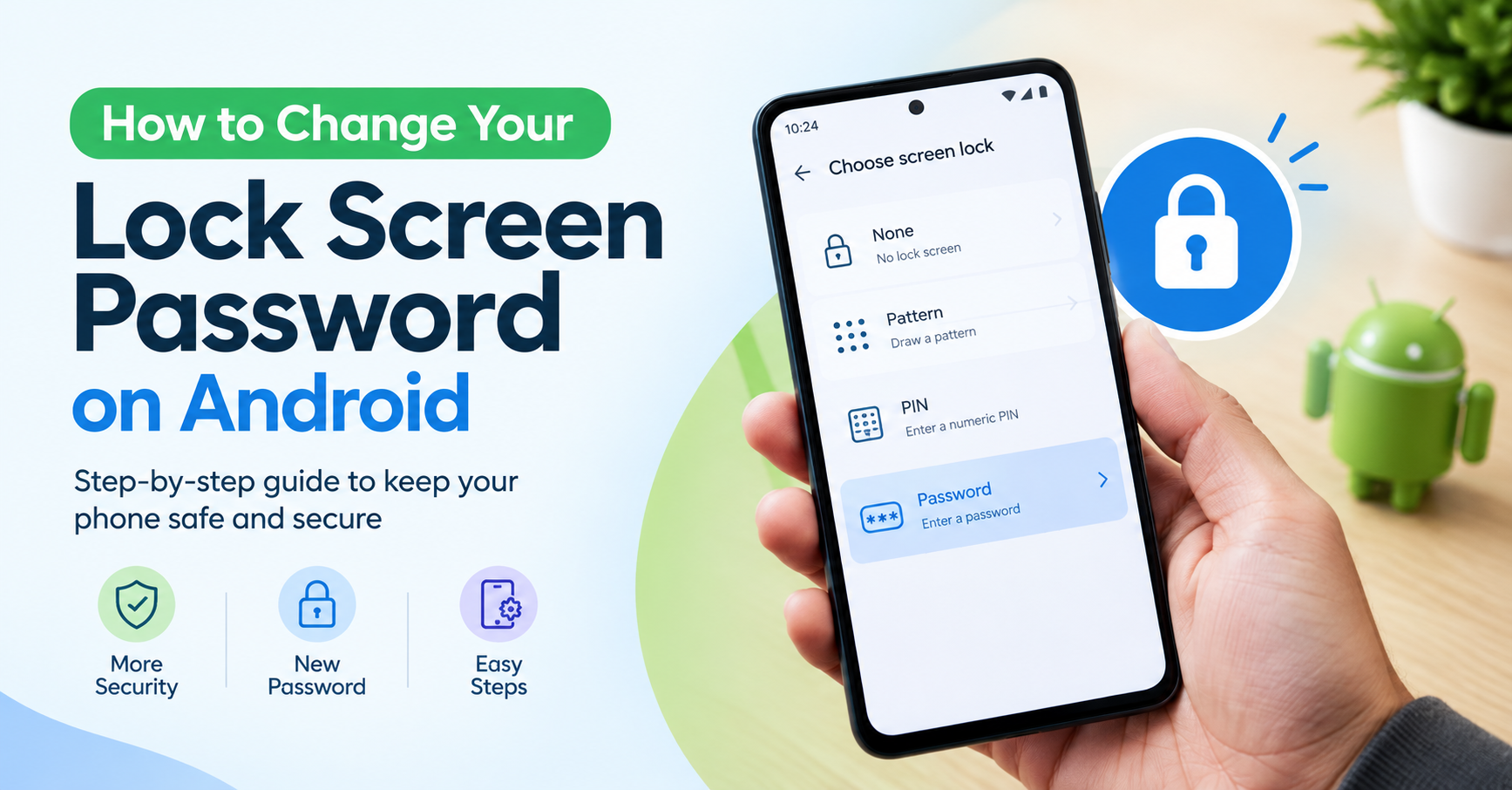
You can use your Android phone's lock screen password to keep your photos, messages, apps, and personal data safe from prying eyes. Changing your password takes only a few minutes and is necessary if you believe someone knows it or if you'd like to use a different one. We'll show you how to set a lock screen password on Android and how it works on most Android devices.
Why Change Your Android Phone Password?
There are several reasons why you should change your phone password. You may need a stronger password for security, or if you've shared your password with anyone else, you'll need to change it — or if you're just looking for something you can remember.
Regularly reviewing your screen lock settings can help keep your Android device more secure, especially if you store sensitive information on your phone.
How to Change Your Phone Password on Android
The names of the menus may differ depending on the manufacturer and version of Android. The overall process, however, is the same on most devices.
Step 1: Open Settings
On the Android phone, launch the Settings app. It can typically be found in your app drawer or by swiping down from the top of the screen and touching the gear icon.
Step 2: Go to Lock Screen or Security
Search for a setting like Lock Screen, Security, Security & Privacy, Lock Screen, and AOD. The following text may vary on Samsung, Google Pixel, OnePlus, Motorola, and other Android phones.
Step 3: Select Screen Lock
Tap Screen Lock, Screen Lock Type, or similar. Your phone might prompt you to enter your current password, PIN, or pattern to make changes.
Step 4: Choose a New Password
If you wish to use letters, numbers, and symbols, choose Password. For some phones, you can also use a PIN or pattern to unlock the phone.
Type in your new password and then follow the on-screen instructions to verify your password.
Step 5: Test Your New Password
Lock your phone and unlock it with the new password. Be sure to remember it before continuing to operate your device.
What is the best option you have: password, PIN, or pattern?
Android phones typically have a few types of screen locks. Long passwords that are hard to guess are a good safeguard. It's usually faster to enter a PIN, but it can be convenient with a pattern which can be easier to see.
To add further security, use a different password or PIN for this account than for other accounts.
What if you forget it anyway?
Normally, if you don't remember the lock method password for your current screen lock, you won't be able to change it in the regular settings menu, as you need to confirm the existing lock method.
You might have to resort to the manufacturer's official recovery program or reset the phone as per your device and situation. You may lose data from the device if you perform a factory reset, so check available data recovery options before you do.
Final Thoughts
It is essential that you know how to change your phone's password so that you can keep your phone more secure. It is very easy to change your password. Whether you're asking how to change my password, how to change my password, or simply how to change your phone password, it's basically as follows: Open Settings, go to security settings or lock screen, confirm your current security code, and set a new one.
If your Android telephone has difficulty operating any physical component, such as the display, buttons, charging, or anything else, an expert smartphone repair service will help to determine and resolve the issue.
Need more helpful smartphone tips and troubleshooting guides? Visit DeviceFixes for practical tech information, solutions, and expert repair advice to keep your devices working smoothly.
- Managerial Effectiveness!
- Future and Predictions
- Motivatinal / Inspiring
- Fitness and Wellness
- Medical & Health
- Manufacturing
- Education
- Real-Estate
- Food Industry
- Hospitality
- Online Games
- Sports
- Home Services
- Civil Engineering
- Safety and Protection
- Software Products & Services
- Fashion and Jewellery
- Artificial Intelligence
- Entrepreneurship
- Mentoring & Guidance
- Marketing
- Networking
- HR & Recruiting
- Literature
- Shopping
- Career Management & Advancement